Overview
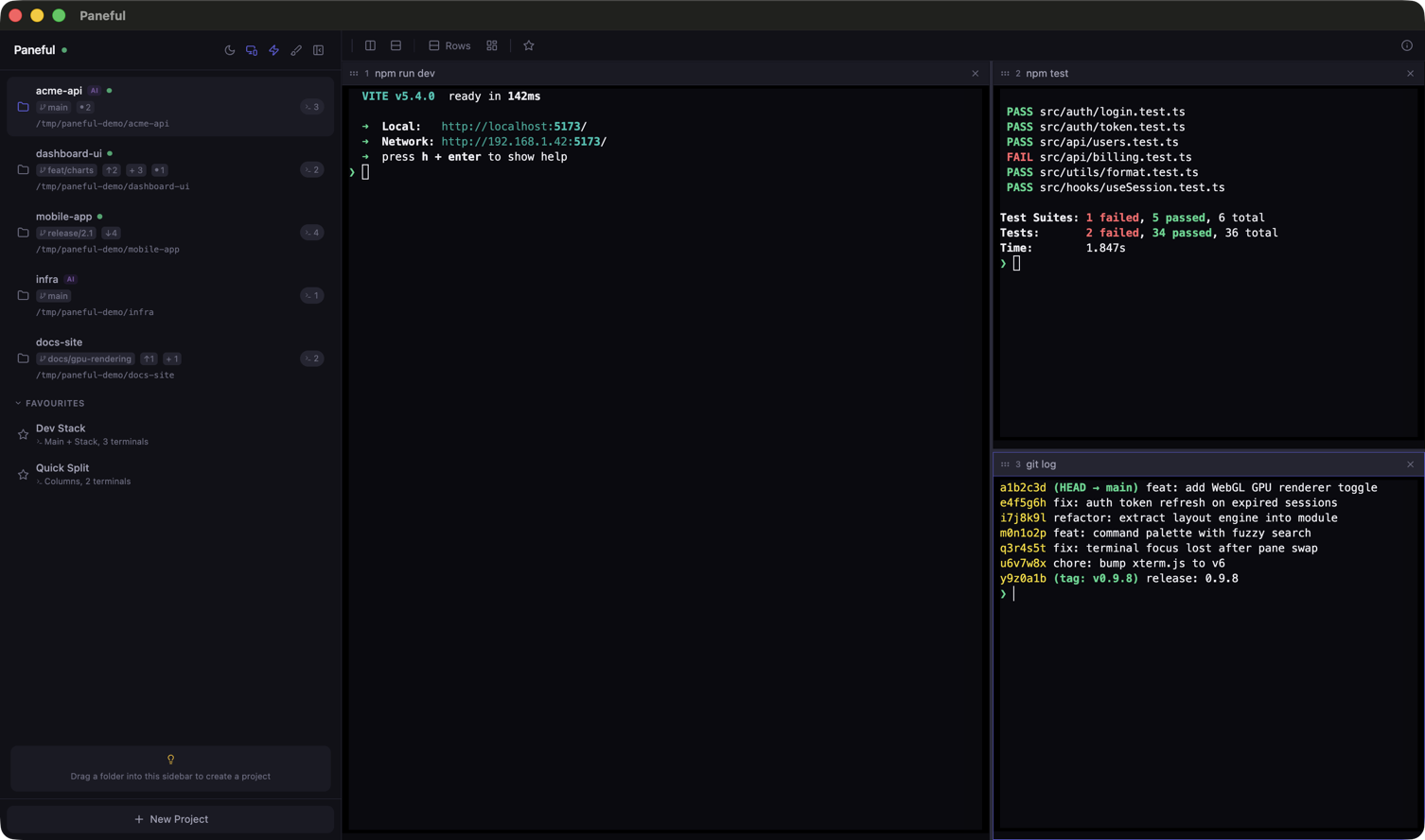
Paneful is a browser-based terminal manager designed for project-driven development. Each project gets its own pane layout and working directory; switching is instant. Comes with a built-in source control panel, a scheduled-jobs system, GPU rendering, and detection for active editors, dev servers, and AI agents.
It runs as either a native macOS app (with its own Dock icon) or in any modern browser — your terminals are the same in both. macOS and Linux only.
Install
From npm:
npm install -g panefulThen start the server and open the UI in your browser:
panefulThat's it for the browser flow. To install the native macOS app:
paneful --install-app
A folder picker prompts for the install location (defaults to
/Applications). Updates rebuild the .app
in place via paneful update.
.app step needs the Xcode command-line tools
— run xcode-select --install if you haven't already.
First project
Drag a folder from Finder into the sidebar to create a project. Alternatively, run inside a folder to spawn a project there:
cd ~/code/myapp
paneful --spawn
Each project carries its own pane layout, terminals, and working directory. Switch projects from the sidebar; everything restores instantly because terminals stay alive in the background.
Splitting panes
Press ⌘ + N for a vertical split, ⌘ + Shift + N for horizontal. Cycle through five layout presets with ⌘ + T, or auto-pick the best one with ⌘ + R.
Favourites
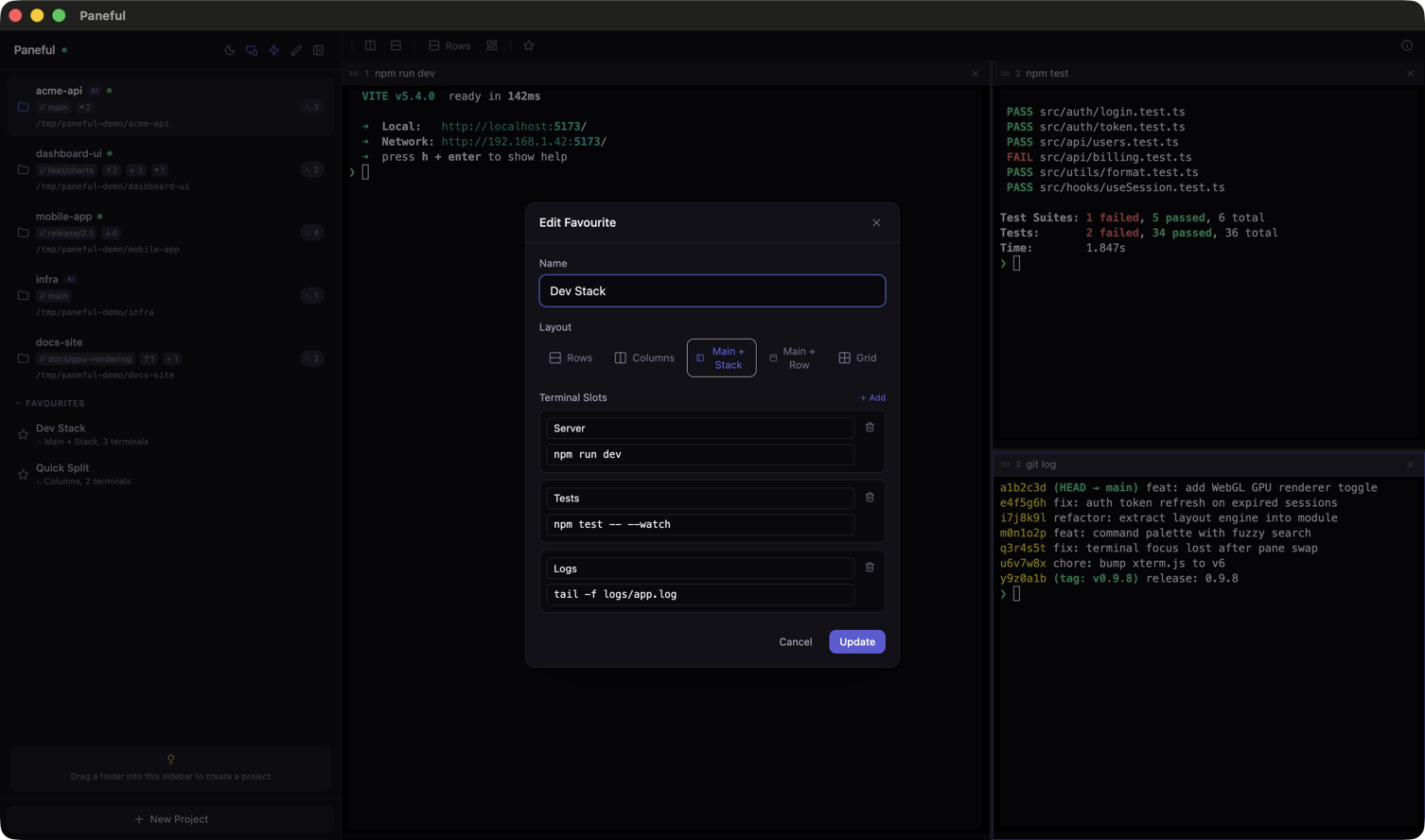
Save the current layout (split shape and per-pane commands) as a favourite. Click to relaunch — the layout rebuilds and each pane runs its assigned command. Useful for recurring "dev server + tests + logs" setups.
CLI
| Command | What it does |
|---|---|
paneful | Start the server and open the UI |
paneful --port 8080 | Listen on a specific port (default: random) |
paneful --spawn | Add the current directory as a project |
paneful --list | List all projects |
paneful --kill my-project | Kill a project by name |
paneful update | Update to the latest version (rebuilds the .app in place) |
paneful --install-app | Install as a native macOS app |
Updating
paneful update
Checks npm for the latest version, installs it globally, and rebuilds
the native .app if one is installed. The Dock icon stays
valid automatically.
Paneful also checks for newer versions on npm in the background and shows a small notification in the sidebar when an update is available.
What's next
The other doc pages cover specific subsystems in depth:
- Schedules (Beta) — recurring jobs, each as its own interactive terminal.
- Source control — staging, diffing, committing, push/pull, stash.
- Editor sync — auto-switch projects when you focus a VS Code / Cursor / Zed window.
- Keyboard shortcuts — every binding in one table.